Using the ServiceTitan Field Mobile App
ServiceTitan’s Field Mobile App improves technician workflows with a faster, more intuitive design built natively for iPhones and iPads. The Field Mobile App syncs automatically with the office, ensuring technicians always have the latest information to complete their jobs efficiently.

This legacy ServiceTitan mobile app is no longer available as of May 2026. ServiceTitan will be sunsetting the legacy app some time in the near future.

Looking for information around Tap-to-Pay in the Field Mobile App? Click or tap here for the full user guide.
For even more information around the Field Mobile App, feel free to check out ServiceTitan's Knowledge Base guide, and check out where stuff from the legacy app moved to in the new app.
Downloading and Installing
The Field Mobile App is likely already installed on your iPhone and/or iPad, and can be easily found by looking for the large blue background around it:
| New ✅ | Old ⛔ |
If it isn't already installed, you can also do so yourself manually.
- Open the Comp Portal app.
- In the search bar at the top, type in ServiceTitan Field, and then tap on Install. You may see "Downloading...", but you don't need to wait! It's more than likely already downloaded - simply go back to your home screen, and look for the same image of the new app in the screenshot above.
Signing In and Setting Up for the First Time
- When opening the new Field Mobile app for the first time, you'll be greeted with an Allow "ST Field" to find Bluetooth devices? message, which you'll want to tap Allow.
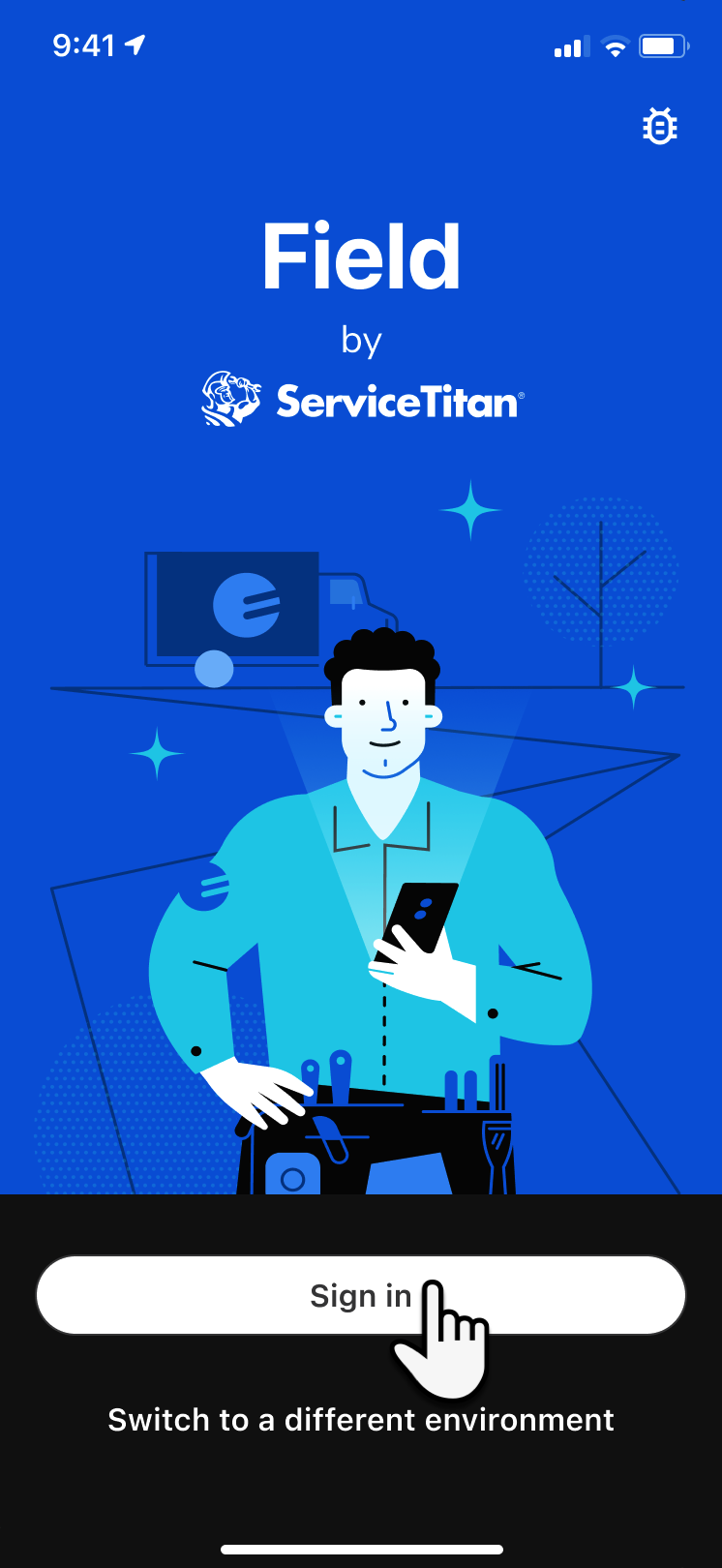
- Next, tap Sign in towards the bottom.
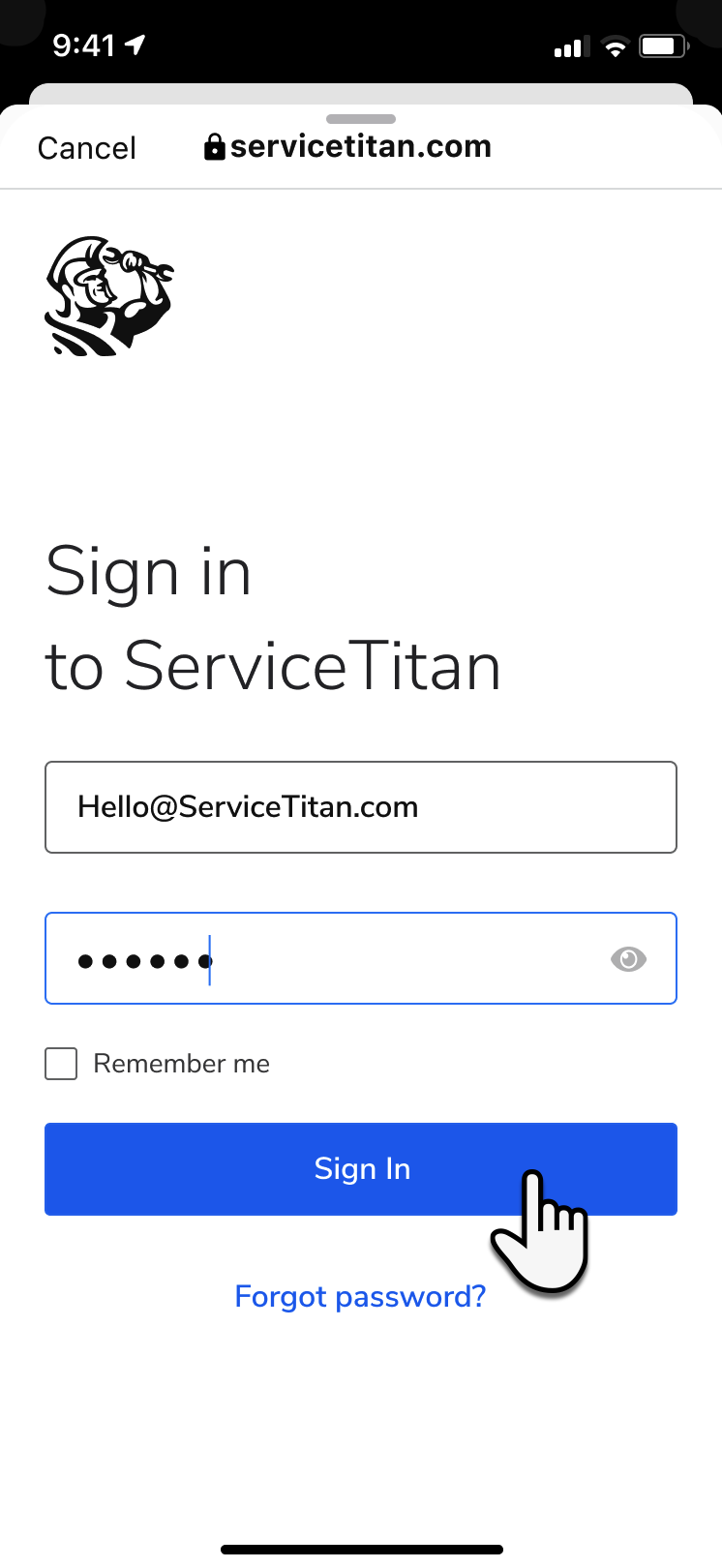
- On the window that opens, enter your Username and Password, then tap Sign In. If you need help resetting your password, you can follow this guide here. If you still need further help, please submit a ticket to the Goettl Help Center by going to helpme.goettl.com.
- Next, you'll be greeted to a Welcome screen, where you can simply tap Continue.
- On the notifications screen, be sure to tap Enable Notifications, and then Allow. This will ensure you get notified anytime you've been dispatched to a new job, have a new message, or other kinds of alerts. Yep, that's right, no more relying on text message alerts
- The app will then begin download Pricebook data, including photos and other media. You can either wait for it to finish, or tap Continue and it will finish downloading in the background. Either way, this process only takes a minute or so.
- Next, you'll be greeted to the new home screen! At the top, under Today's schedule, you'll note how this new app updates constantly in real time. Below that are any upcoming appointments or jobs. And at the very bottom, you'll see additional areas where you can access any projects under Projects, access timecards or clock in and out within Time, or change any account or device settings (including clearing app cache) within Menu.
- Tapping on the job will bring you into the job details itself, where you can Dispatch and Arrive yourself to a job. If you're set up with Field Pro (previously called Sales Pro), you can tap on Launch field assistant to get even more guidance.
- As mentioned earlier too, this new mobile app will natively provide notification alerts when you're assigned, dispatched to, or have arrived to a job. No more worrying about not getting a text alert! For example, when you've arrived to a job, you'll see the app notification pop up:
- At the bottom of the screen, the Add button will allow you to do a variety of tasks. For example, when you've arrived to a job, you'll be able to add estimates, payments, photos or any kind of media, and more.
- Finally, when you're done, you can tap the Close Out button at the bottom of the screen when you're done. Or access any timecards for this job by tapping on the clock icon on the left.
Old Versus New
To see a direct comparison of the old and new screens, check out this ServiceTitan Knowledge Base article here. This will help you better understand what's changed around Job actions, estimates, POs, and much more.
Switching Environments for Training or Testing Purposes
ServiceTitan normally operates around live data. When you open the app for the first time or on any regular basis, anything you do within it will affect real jobs, timesheets, and everything else. But if you want to run some test jobs with new hires, test out some existing features, or just simply check out new upcoming features, switching to the Next or Practice environments is great for this!

Note (because it's really important):
This section is a little more advanced, so if you're not sure what this is for, or if you haven't talked to anyone about this yet, please speak with your direct manager first before proceeding. Alternatively, you can always feel free to submit a ticket to the Goettl Help Center at helpme.goettl.com and they'll be happy to assist.
The different environments include:
- Go (live)
- This is your live account; any changes made here are saved and will affect real live data in your branch. Unless you're explicitly testing a new feature, or training on how to use the Field Mobile App, you'll primarily want to use this environment.
- Next (testing)
- This environment may have new features or configurations that are part of upcoming releases and updates, and is primarily for testing out those new features. Think of this environment as the trailers that come out before the movie starts. If you're just looking to train, you'll want to use the Practice environment.
- Changes made here are not saved and won't affect live account data.
- This environment gets wiped once a week.
- Practice (training)
- This is a great sandbox environment for training new hires, running through job workflows, or brushing up on any part of the Field Mobile App without touching live data.
- Changes made here are not saved and won't affect live account data.
- This environment gets wiped once every release (roughly once a month).
To get started on switching between the Go (live) and Next (testing) and Practice (training) environments, follow the steps below.
- Open the Field Mobile App.
- If you haven't signed in yet, proceed to step 3 below. If you're already signed in however, skip to step 9 below.
- Towards the bottom of the screen, tap on Switch to a different environment.
- You'll be greeted by three options - Go, Next, and Practice. Tap on the environment you want, and tap Apply.
- Next, you'll need to fully close and reopen the app to switch to the other environment. To do so, swipe up from to bottom of your iPad or iPhone, but keep your finger on the screen and hold it there. After a moment, you'll see the ST Field app pop into the background. At this point, take your finger off the screen, and swipe up on the ST Field app - almost as if you're whisking it away towards the top of your screen.
- Reopen the Field Mobile App, and you'll see Next Environment (in yellow) or Practice Environment (in light purple) if you've done this successfully. Please note that the regular Go (live) environment won't have a banner here.
- At this point, you can tap Sign in, where you'll also see Next Environment or Practice Environment in orange, and sign in like normal. As always, if you need help with your username or password, please submit a ticket to the Goettl Help Center by going to helpme.goettl.com.
- Once you've signed in successfully, you'll also always be able to tell which environment you're in by the banner at the top in either yellow for Next, or light purple for Practice. Please note that the regular Go (live) environment won't have a banner.
- If you're already signed into the app and you want to switch environments, open the Field Mobile App, and tap on Menu at the bottom right.
- Scroll down to the General section at the bottom, and tap on Switch environment. This will also have a banner above it showing which environment you're currently in. If you don't see a banner, it means you're in the Go (live) environment.
- Once you've tapped on Switch environment, tap on whichever environment you're wanting to switch to, then tap Apply and Sign Out.
- Scroll back up to step 5 above and follow the steps to get signed in from here.
Troubleshooting
If you're still running into issues, and have confirmed that the above permissions match yours, feel free to submit a ticket to helpme.goettl.com, or tap on the Help Center icon on your iPhone or iPad.
App Permissions
The majority of ServiceTitan app issues can be resolved by ensuring that it has access to all the right permissions, so feel free to review this article to ensure you have all app permissions set up correctly.
Check Your App Version
Not sure if you have the latest version, or what version of the app you're using? Finding it is easy!
App updates are released regularly and are installed on your work phone automatically. More often than not, you'll have the latest version.
- At the bottom, select Menu.
- Scroll down and select About.
- Here, you'll be able to find the version of the app you're using.
Closing and Reopening the App
On some occasions, such as if the app isn't responding or you need to switch environments, you can close and reopen the app.
This is different than simply swiping away and going back on your home screen to open a different app altogether. Think of this as 'shutting down' an app and restarting it, similar to how you might restart your device. It forces the app to refresh data. This is also known as force-closing an app.
- Go in to the app in question you want to close, such as the ServiceTitan Field Mobile App.
- From the Home Screen, swipe up from the bottom of the screen and pause in the middle of the screen.
- If needed, swipe right or left to find the app that you want to close.
- Swipe up on the app's preview to close the app.
Delete and Reinstall the App
In rare occasions, it may be easier to simply delete and reinstall the Field Mobile App. While not typically necessary, this is a fairly quick and easy thing to do that should resolve most issues.
Deleting the App
- Find the Field Mobile App, and press and hold on the app itself - after a moment, a menu will pop up. Tap on Remove App. Another menu will pop up confirming you want to remove it; tap on Delete App. A final menu will pop up confirming one last time you want to delete the app; tap on Delete.
Reinstalling the App
- Find and open the app named Comp Portal. Tap on Sign In, and in the search bar at the top, type in "servicetitan field" (without the quotes of course). Tap on the ServiceTitan Field app at the top, and finally tap on Re-install.
- Return to the home screen, and the app should begin downloading shortly, but please note this may take a few minutes.
Resetting Your Password
There are a few situations in which you need to reset your password:
- If your office manually created a profile for you, you’re prompted to update your password after you sign in with your temporary credentials.
- After one year, you’re prompted to reset your password for security reasons.
- You've simply forgotten your password. Not that in this case, you can reset it by tapping Forgot Password on the Sign In screen.
You can also reset your password at any time by going to the bottom right and tapping on Menu, then scrolling down to the General section, and tapping on Change password.
- On the Reset Password screen, tap Reset Password.
- Note: How you get to the Reset Password screen depends on which situation led you to reset your password. For more, see the situations listed above.
- On the browser screen that opens, enter the username, email address, or mobile phone number associated with your profile and then tap Submit.
- An Enter Code screen opens, asking you to enter the verification code sent to your email address associated with your profile. Open your email and copy the code.
- If you have multiple accounts between technicians and office employees, make sure to enter the code for the technician, which is listed right above the code.
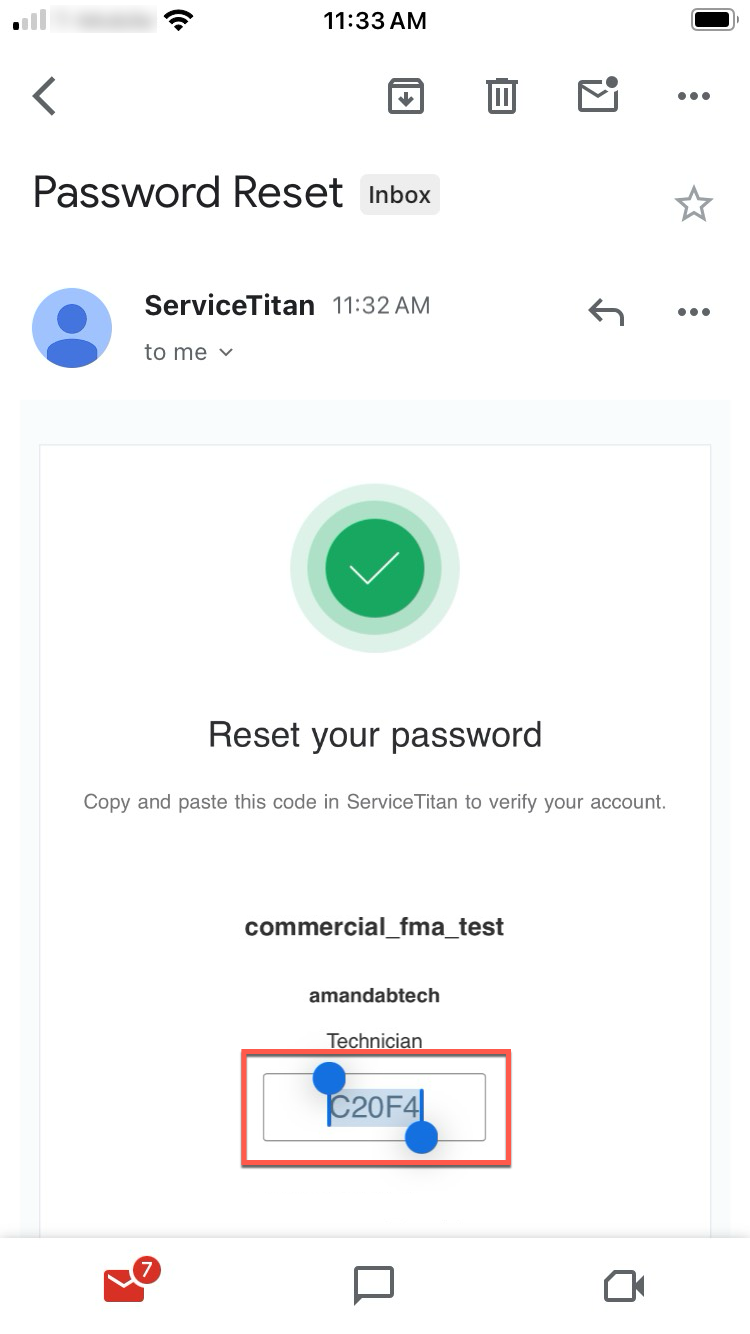
- Go back to the Enter Code screen, paste the code from your email, and then tap Verify Account.
- On the screen that opens, follow the instructions and enter your new password twice, making sure the passwords match, then tap Submit.
- On the screen that opens, tap Done.
- Go back to the Sign In screen and sign in with your new password.